One Gallery for every screen
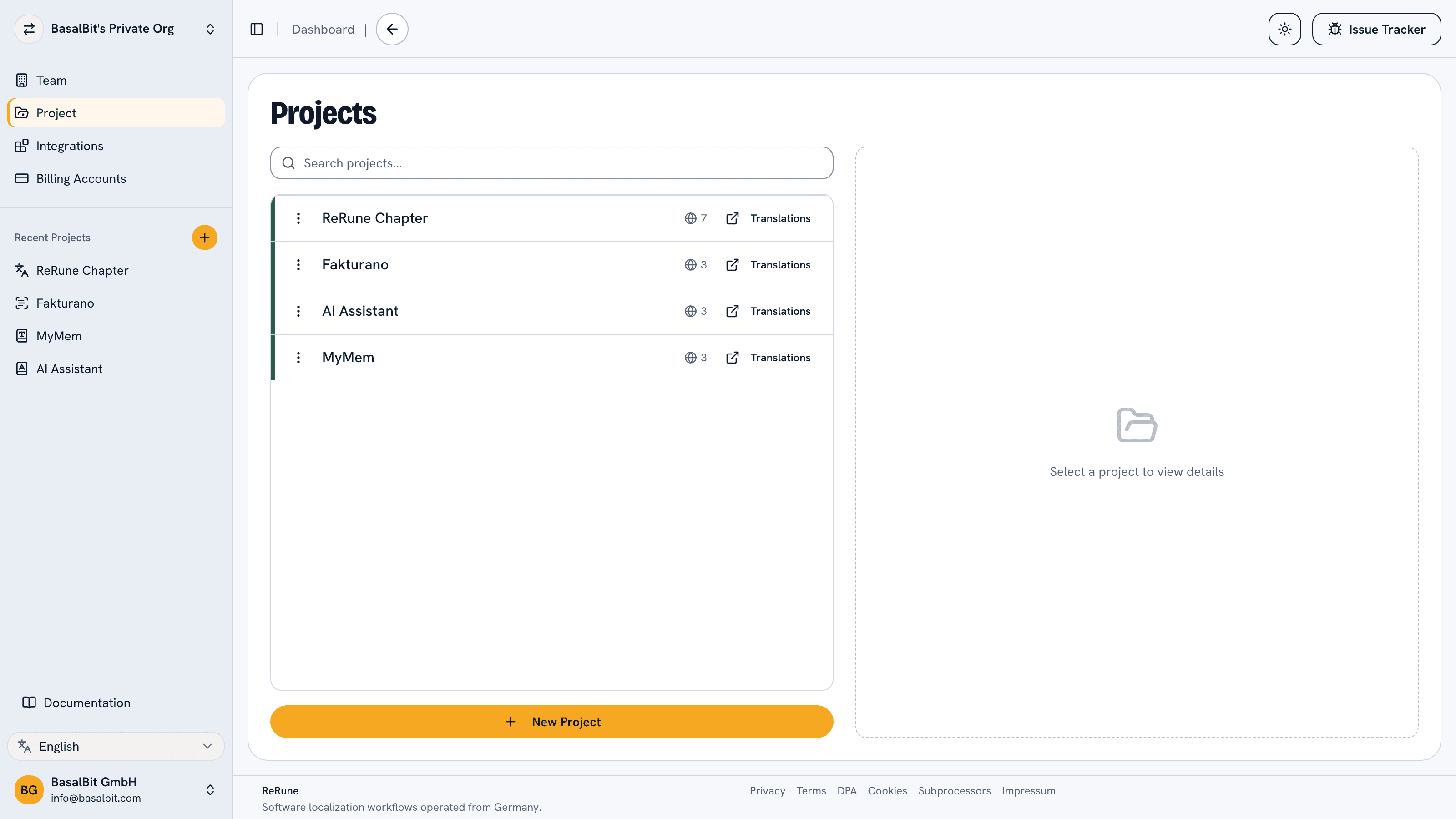
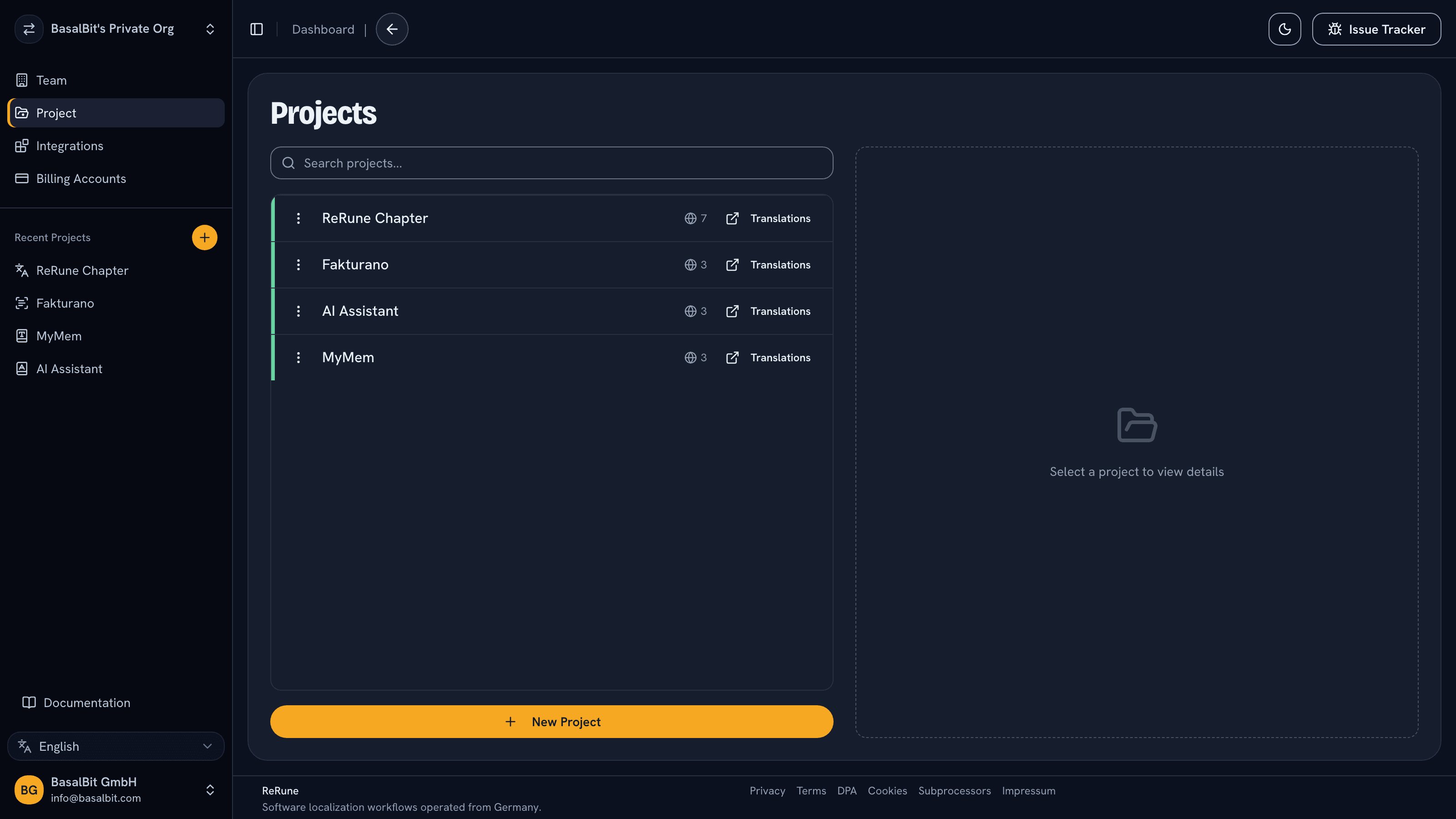
The Gallery tab shows each screenshot once, with the number of keys on it. Search by screenshot name, page, key name or text, and filter by Figma or uploaded screenshots.
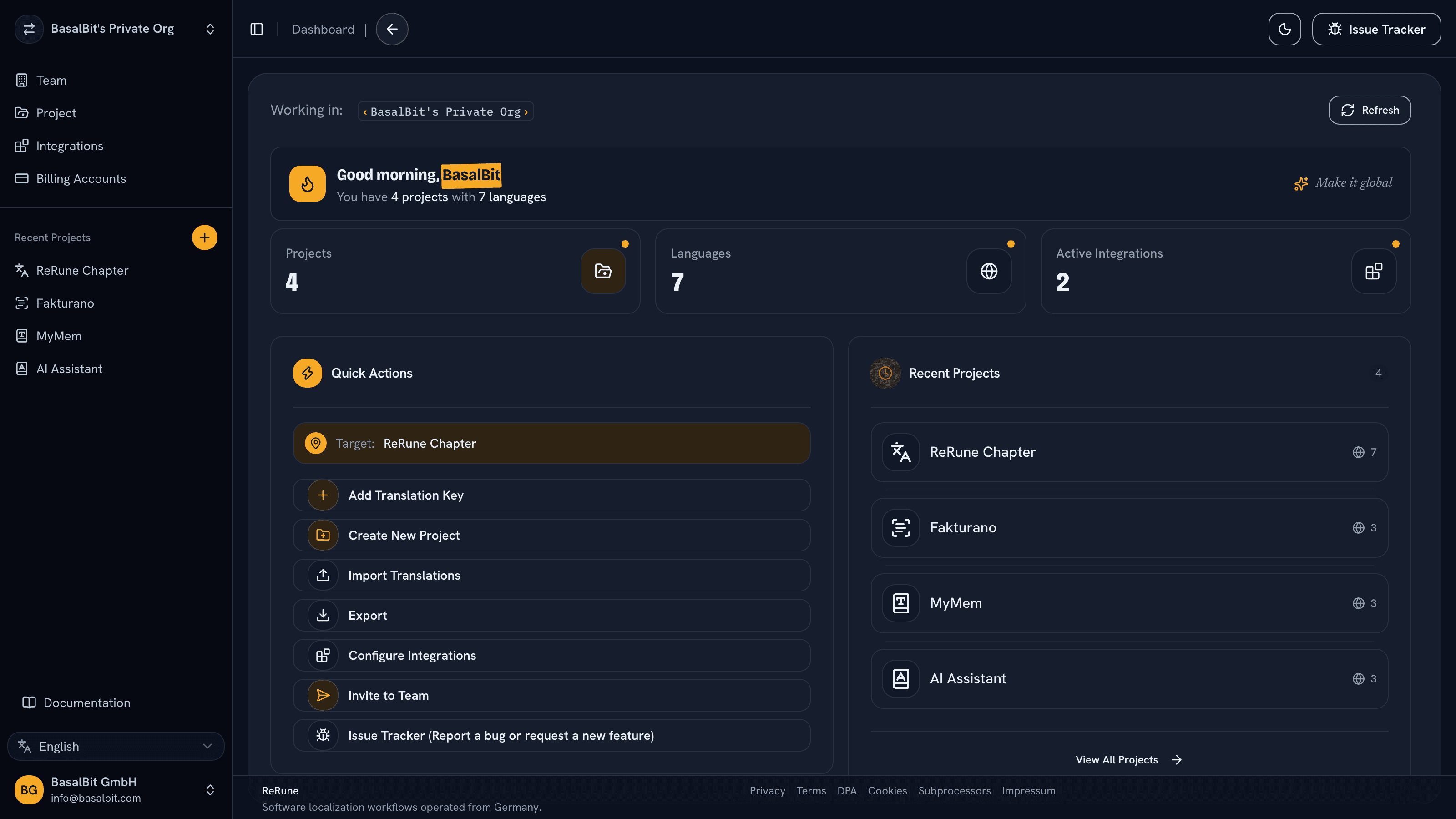
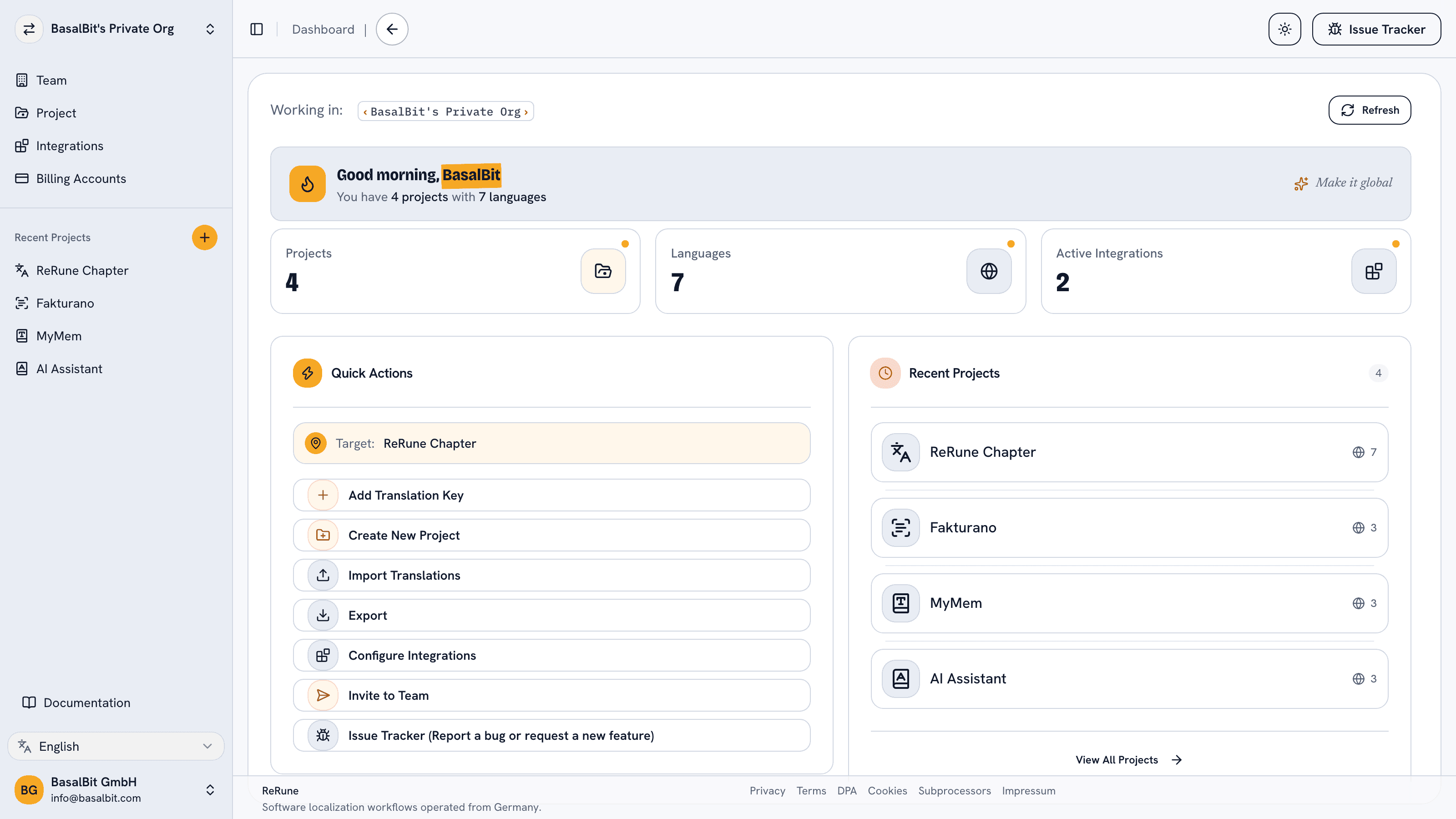
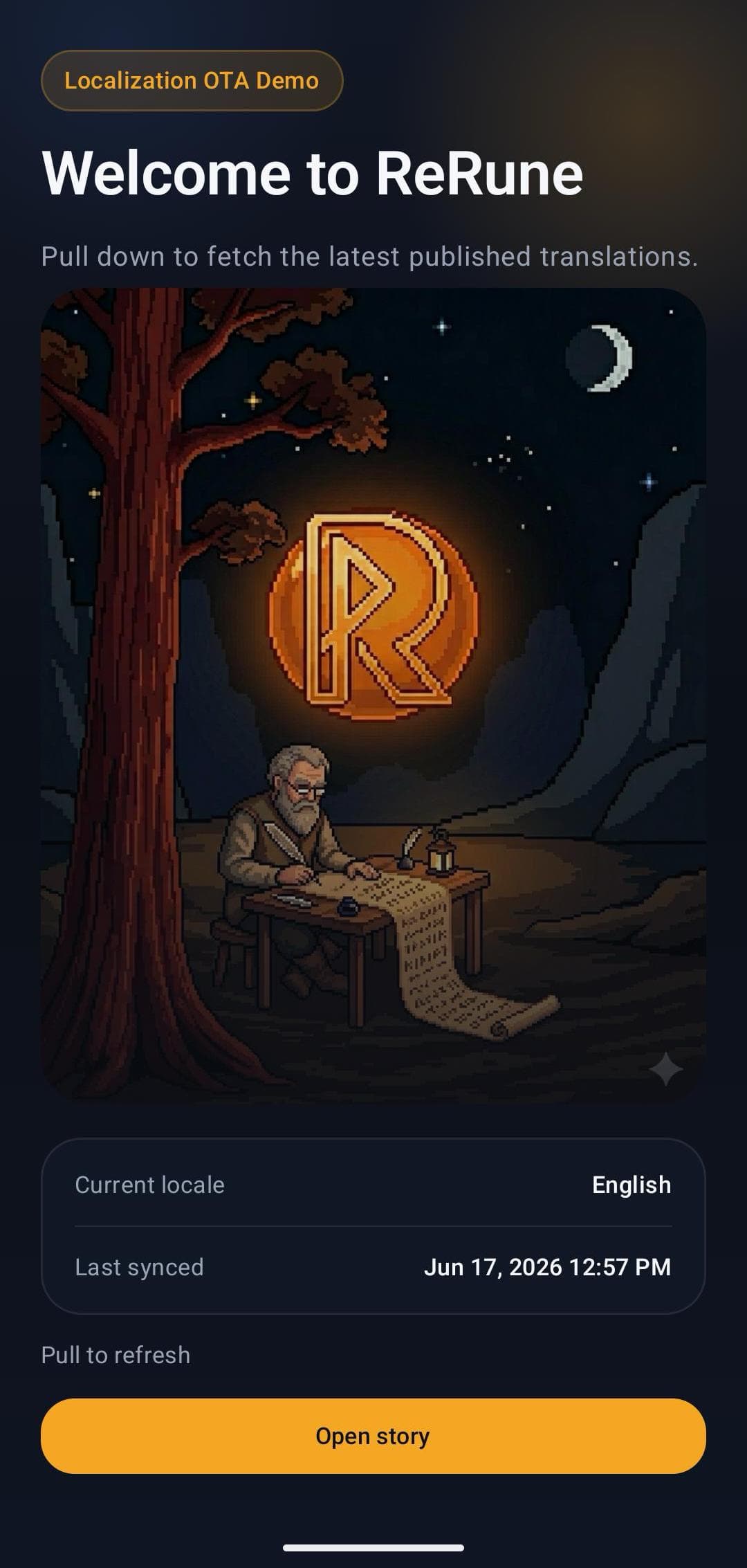
A key name and a source string rarely say where a text sits, how much room it has or what it labels, so translators guess and developers answer the same questions again.
Product, design and localization teams whose translators and reviewers work from key names and source text alone.
Screenshots live next to the keys in ReRune: each key shows the screens it appears on in its Design tab, and the key list filters by screen.
Visual context
The Gallery tab shows each screenshot once, with the number of keys on it. Search by screenshot name, page, key name or text, and filter by Figma or uploaded screenshots.
Draw an area for each key on the screenshot, up to 20 per key for a label that repeats. Opening the key highlights its areas, and the Screens filter lists the keys of one or more screenshots.
Replace image swaps the picture and keeps the screenshot. Every key comes back as a draft at the same place, scaled to the new image, for you to confirm or move.
The ReRune plugin for Figma, coming soon to Figma Community, will upload a screenshot of each frame it pushes, with every linked layer marked, and ReRune will flag screenshots whose text is out of date.
Workflow
Manage keys, languages, values, placeholders, glossaries, metadata, and project context before translation work spreads across files and messages.
Use DeepL or OpenRouter-assisted translation flows with glossary terms and product context close to the text being reviewed.
Use CLI/API workflows to move approved translations into repositories, CI/CD jobs, scripted release tasks, or custom platform integrations.
Export platform formats or publish OTA updates for supported SDKs while keeping bundled app resources as the safe fallback.
Setup WizardAI Coding Agent
Run the onboarding command from the root of your Git repository. The wizard inspects the app and confirms the plan with you, with no AI involved and nothing changed yet. Then it opens the coding agent you already use with a complete migration workflow.
Run inside your Git repository
curl -fsSL https://rerune.io/onboard.sh | shThe script runs locally. ReRune does not receive your source code or list of installed agents.
11 integrations: 4 available now, 7 planned.
 OpenCodeReady
 PiReady
Coverage
Developer delivery
Companion CLI
Use the ReRune CLI to sync, validate, and manage translations right from your terminal. Run syncs in CI/CD or locally whenever you need to push a new language.
Homebrew (macOS/Linux):
brew install BasalBit/tap/rerunereruneConnect the project
Create the project config and connect the repository to its ReRune workspace.
rerune pullPull approved updates
Bring current dashboard translations into the app or its build workflow.
rerune pushPush local changes
Send local translation updates back to ReRune for the team to manage and publish.
SDK directory
Public ReRune SDKs for Flutter, Android, iOS, Kotlin Multiplatform, React, React Native, and Angular support runtime variant selection with Main and bundled fallback.
Flutter        rerune ^1.9.1
Android        rerune-android-compose:1.8.0
               rerune-android-views:1.8.0
iOS            ReRune 1.7.0
KMP            rerune-kmp-compose:1.0.0
React          @rerune/react@1.9.0
React Native   @rerune/react-native@1.9.0
Angular        @rerune/angular@1.9.0
Questions
Share an idea, report a problem, or ask for help with ReRune.
No. Members with the Edit keys permission upload screenshots in the dashboard: choose Upload screenshot in the Gallery, drop or paste an image there, or choose Add screenshot in a key's Design tab. The ReRune plugin for Figma, coming soon to Figma Community, will add screenshots of design frames.
PNG, JPEG and WebP work in every browser, and HEIC where the browser can open it. ReRune removes the image's metadata and makes it smaller when needed, to at most 4096 pixels on the long side and 2 MB. Each screenshot needs a name.
Every member of the project's organisation. Screenshots are stored by bunny.net in Germany and shown through signed links that expire. Capture screens with test accounts and sample data rather than real customer details.
Replace image keeps the screenshot and brings every key back as a draft at the same place, scaled to the new image: confirm it, move it, or mark it as not on this screenshot. Deleting a key removes it from every screenshot, and a screenshot without keys stays in the Gallery until someone deletes it.
Explore next
A translation management system for app copy you control. Keep source text, translations, and variants with team permissions, and publish as a separate step.
Use ReRune for AI translation management with project context, glossaries, DeepL and OpenRouter assistance, review controls, and developer sync.
Assign translation keys to teammates with work packages, set due days, add an optional approver, and keep publishing a separate permission in ReRune.
One workspace